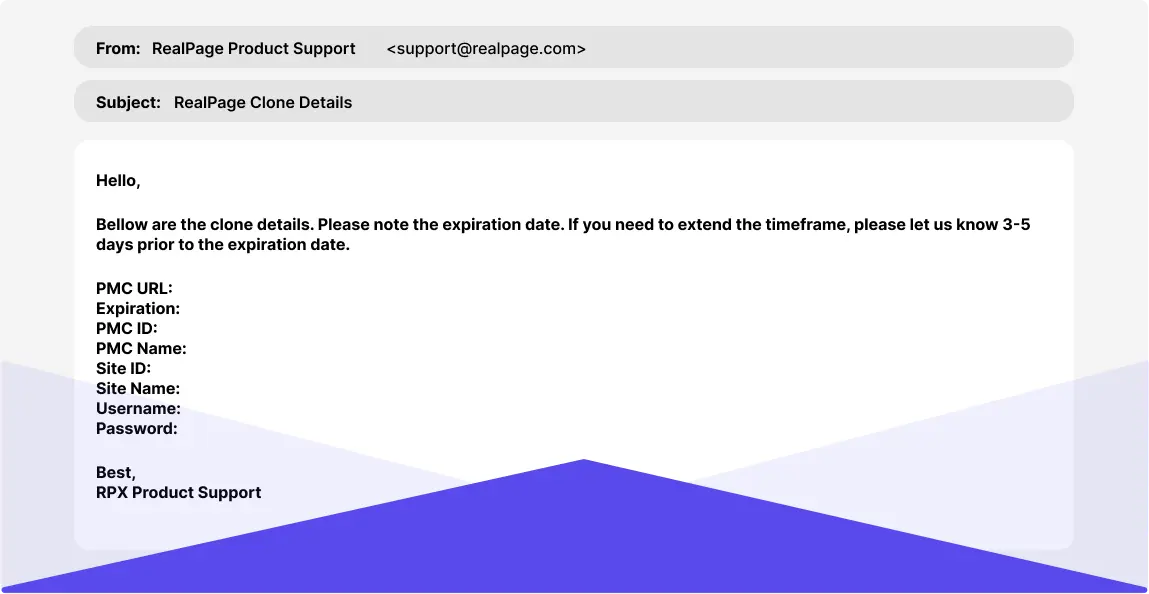
Registered Vendor Clone Environment
Last updated: October 13, 2026
There are four steps to requesting a clone environment:
This guide only applies to the RealPage Registered Vendor Program. If you are part of the RealPage App Partner Program, you do not need to request a clone environment.
-
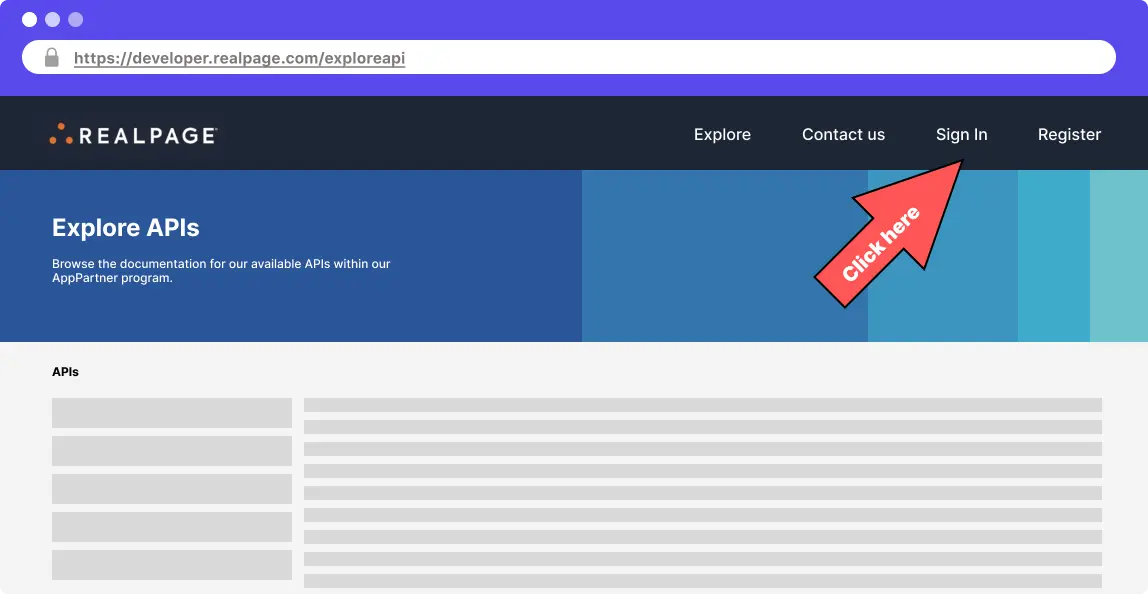
Step 1: Sign In
Sign into the RealPage Developer Portal with your credentials
-
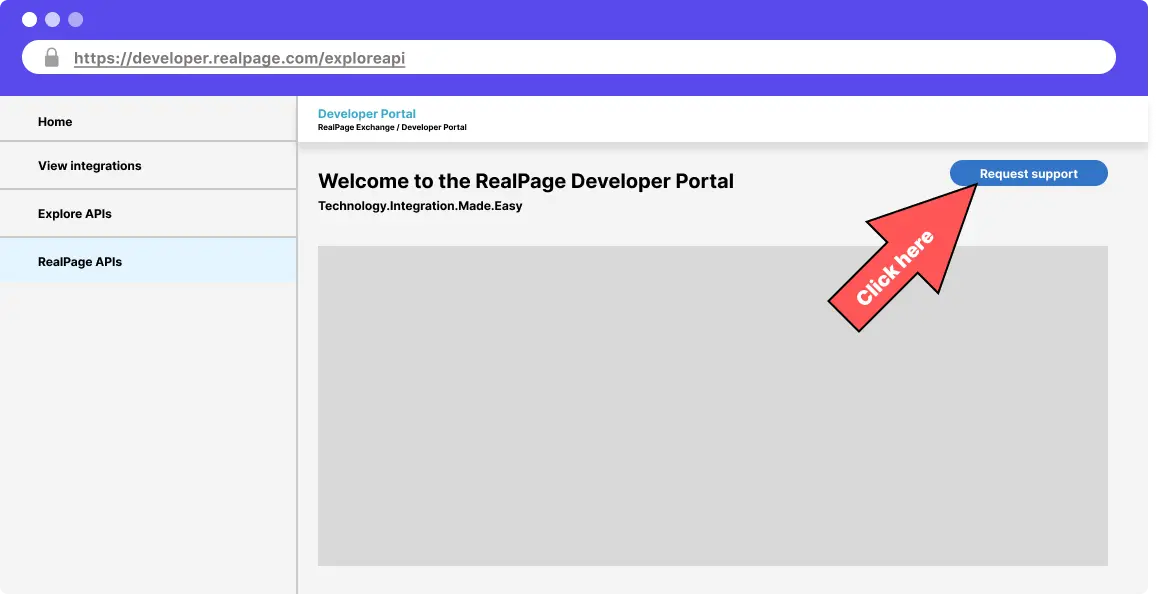
Step 2: Request Support
Click the "Request Support" button in the top right corner of the screen.
-
Step 3: Complete Request Form
Complete the Support Request Form as detailed below and click Submit button at the bottom of the page
Support form responses
- Priority: P2 - High
- Customer Number/Site ID: N/A
- Property Name: N/A
- Company: Your Company Name
- Contact Name: Your name
- Phone: Your phone number
- Email: Your email
- Product: Client Portal
- Operating System: Any option
- Internet Browser: Any option
- Subject: Request a temporary clone environment to use the API
- Detail: I need a temporary clone environment to use the API
-
Step 4: Update Your Credentials
In the Propexo dashboard, navigate to the RealPage integration and update the credentials with the new clone environment details.