PMC Setup: Obtaining Your RentVine Credentials
Last updated: September 15, 2026
Your integration partner uses Propexo to connect to your RentVine account. Before that integration can go live, you need to obtain a company ID, API key, and secret key. Here’s how:
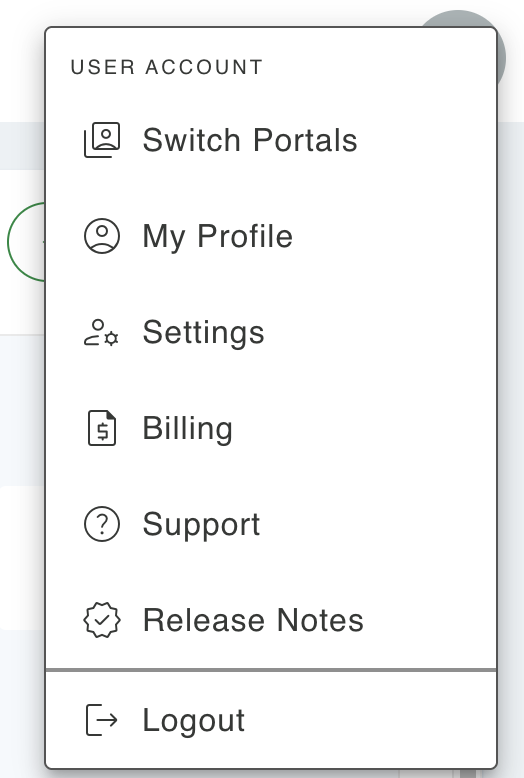
Click on your user Icon, and then Settings in the top-right corner.
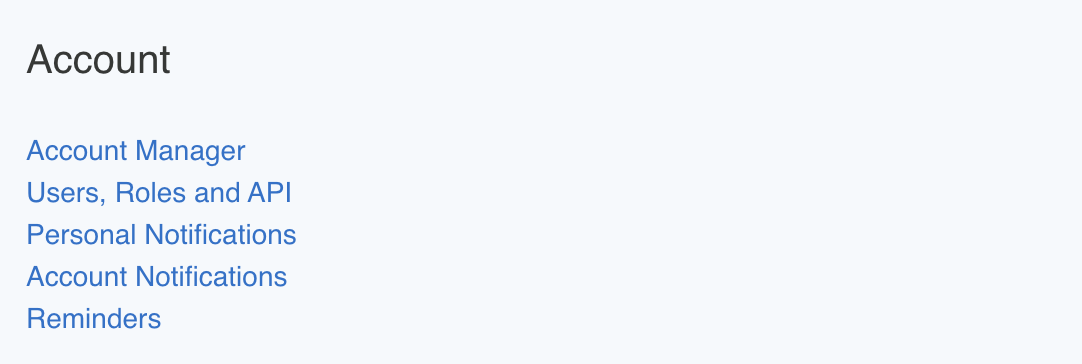
Under Account, select Users, Roles and API.
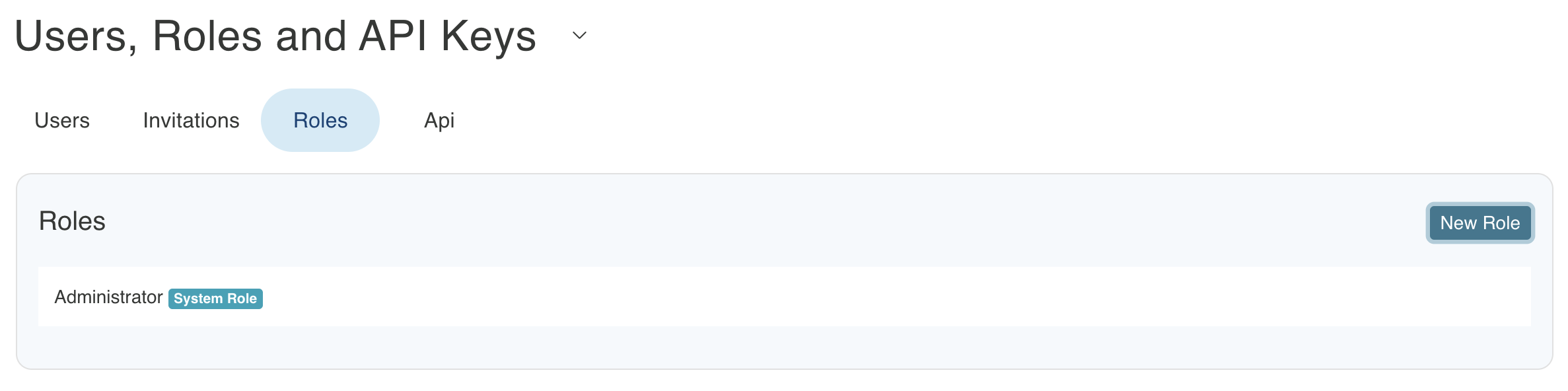
To set up a role for your API key, click on the "Roles" tab at the top of the interface, then select "New Role". From there, you can configure all the necessary role settings that you want the API key to have access to.
Once your role has been created, navigate to the API tab at the top. If you've previously created API keys, they will be listed on this page. To create a new key, click the New API Key button in the top right corner. In the form that appears, you can choose a name for the key and assign it the role you just created. Make a note of your API key and secret.

Identify your Rentvine Company Id from the URL you use to connect to Rentvine. For example, if you access Rentvine from https://1234.rentvine.com, your Company Id is 1234.