PMC Setup: Obtaining Your Rent Manager Credentials and Whitelisting Propexo's IP Address
Last updated: September 17, 2026
Your proptech partner uses Propexo to connect to your Rent Manager account. To finish setting up this connection, you'll need to: (1) generate credentials and send them to your proptech, and (2) whitelist your proptech's IP address(es) in Rent Manager. This guide walks you through both.
Generating your credentials
Log into Rent Manager Partner Web Access.
Head to the API Test Client tab and generate your partner token.
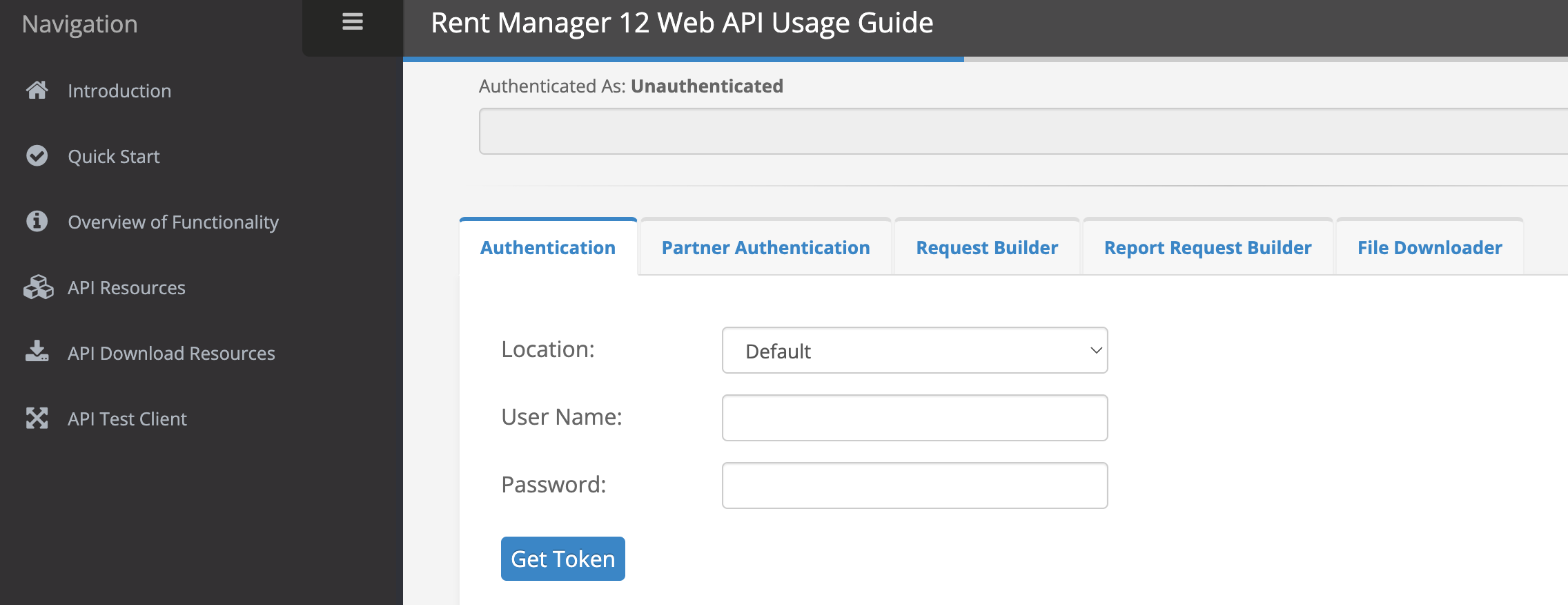
Find your entity name (company code) in the URL of your Rent Manager instance. For example, if your URL is https://propexo.rmx.rentmanager.com/, your entity name is ‘propexo’.
⚠ If this integration will be used in production, you're required to provide a partner token — a username and password combination is not supported in production.
Once you have these, send your proptech partner the following so they can finish setting up the integration in Propexo:
Your customer name (any name you'd like to use to identify your account)
Your entity name
Your partner token, or your username and password
Whitelisting your proptech's IP address(es)
Rent Manager will return an error if the IP address making API requests hasn't been whitelisted. Your proptech partner will send you one or more IP addresses to whitelist — once you have them:
Log into Rent Manager Partner Web Access.
If you haven't yet created your product:
Click “Add New Product” and follow the steps outlined. Whitelisting the IP address(es) your proptech sent you will be part of these steps.
If you have:
Click “Add” on the whitelisted IP addresses tile and enter the address(es) your proptech sent you.