Deposit Summaries API Endpoints
Last updated: November 9, 2026
The Deposit Summaries endpoints let you retrieve and update deposit summary data across supported PMS integrations.
Available Endpoints
1. Get all Deposit Summaries
GET /deposit-summaries
2. Mark Deposit Summary as Paid
Yardi:
PUT /deposit-summaries/yardi— View Yardi endpoint referenceMRI:
PUT /deposit-summaries/mri— View MRI endpoint reference
Setup Requirements
Before you can begin pulling deposit summary data, please complete the following setup steps:
Enable the Deposit Summaries Model
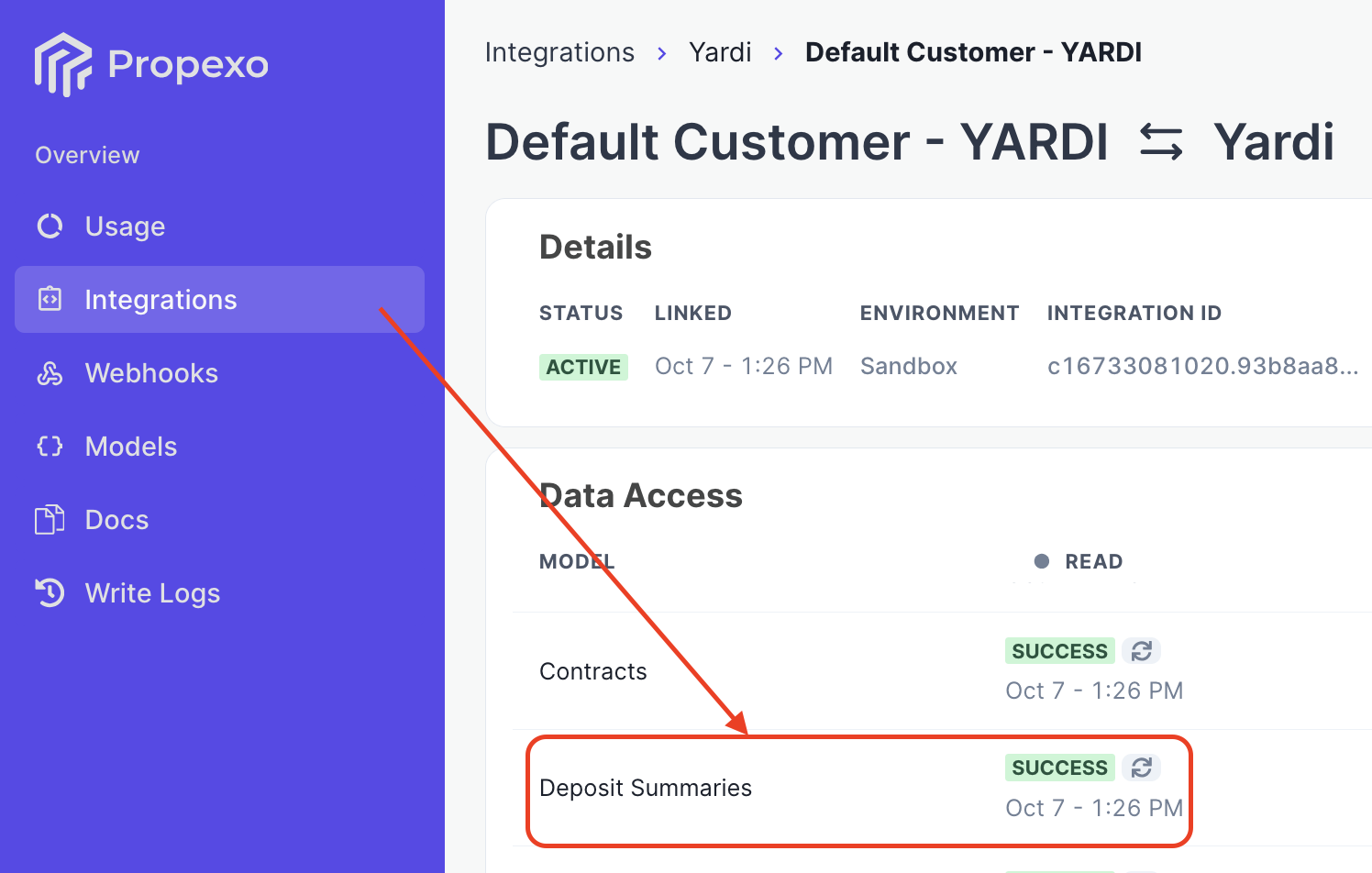
Go to your Propexo Models page and enable thedeposit_summariesmodel.Once enabled, verify success in the Propexo Data Access UI:
Navigate to Data Access in Propexo.
Locate Deposit Summaries.
If the status does not show Success, click Re-test to confirm configuration.
Additional Requirements for Yardi Integrations
To successfully pull Deposit Summary data from Yardi, please ensure the following configuration steps are completed for each customer:
1. Configure the GL Account for Deposit Refunds
For each Yardi integration you must specify the GL Account number used for deposit refunds. The API endpoint to set this configuration can be found here: Configure a Deposit Refund Account Number.
For Production integrations you'll want to work with your customer to confirm the correct GL Account number used for deposit refunds. If you'd like to determine this account number yourself during testing there are 2 ways to view GL accounts from Yardi:
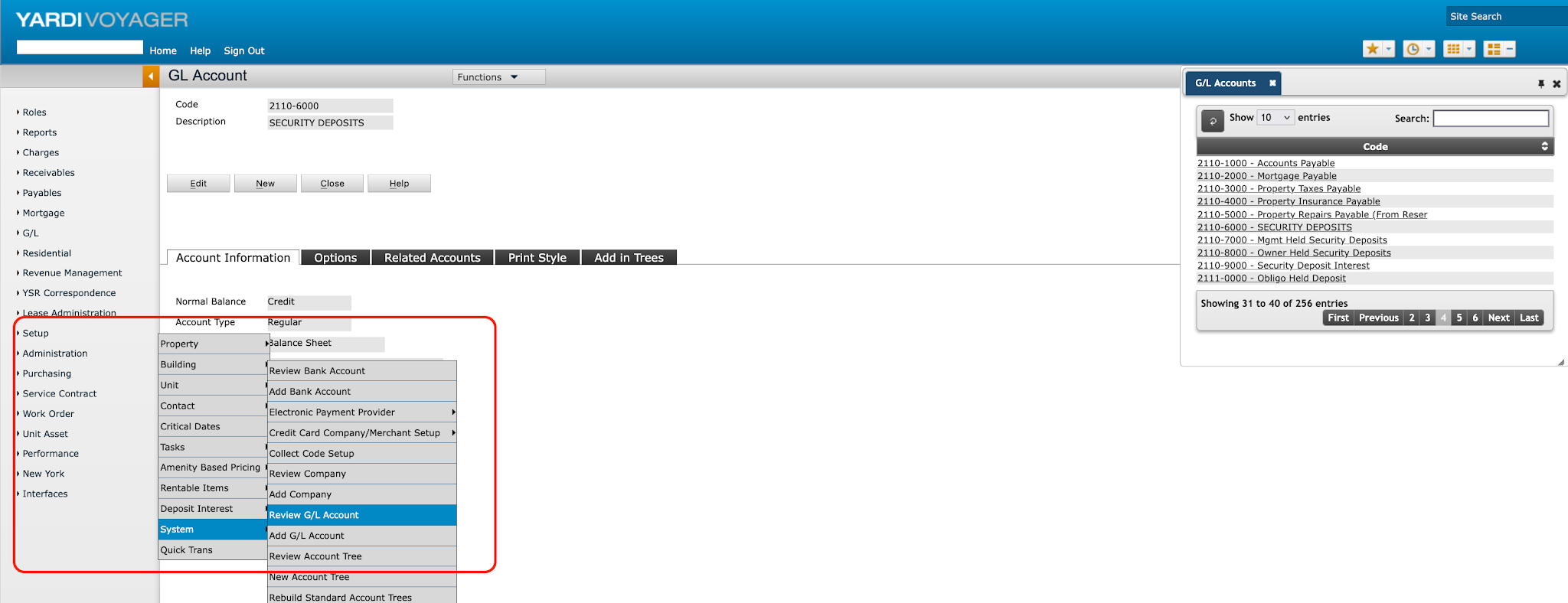
1. In Yardi directly:
GL Accounts can be found in Voyager via Setup > System > Review G/L Account
2. Via Propexo API:
Enable the “financial accounts” data model, run a sync, and once the sync completes, query the GET /financial-accounts endpoint: Get all financial accounts
Updating a deposit_summaries record
To successfully update a deposit_summaries record to be marked as paid, please ensure the following configuration steps are completed for each customer:
1. Identify the Bank Account used for Deposit Refunds
When updating a deposit_summaries record you'll pass in the Yardi Bank Account code in the x_bank_id request body field.
For Production integrations you'll want to work with your customer to confirm which is the correct Bank Account code used for deposit refunds. If you'd like to determine this Bank Account code yourself during testing there is only 1 way to view Bank Accounts in Yardi:
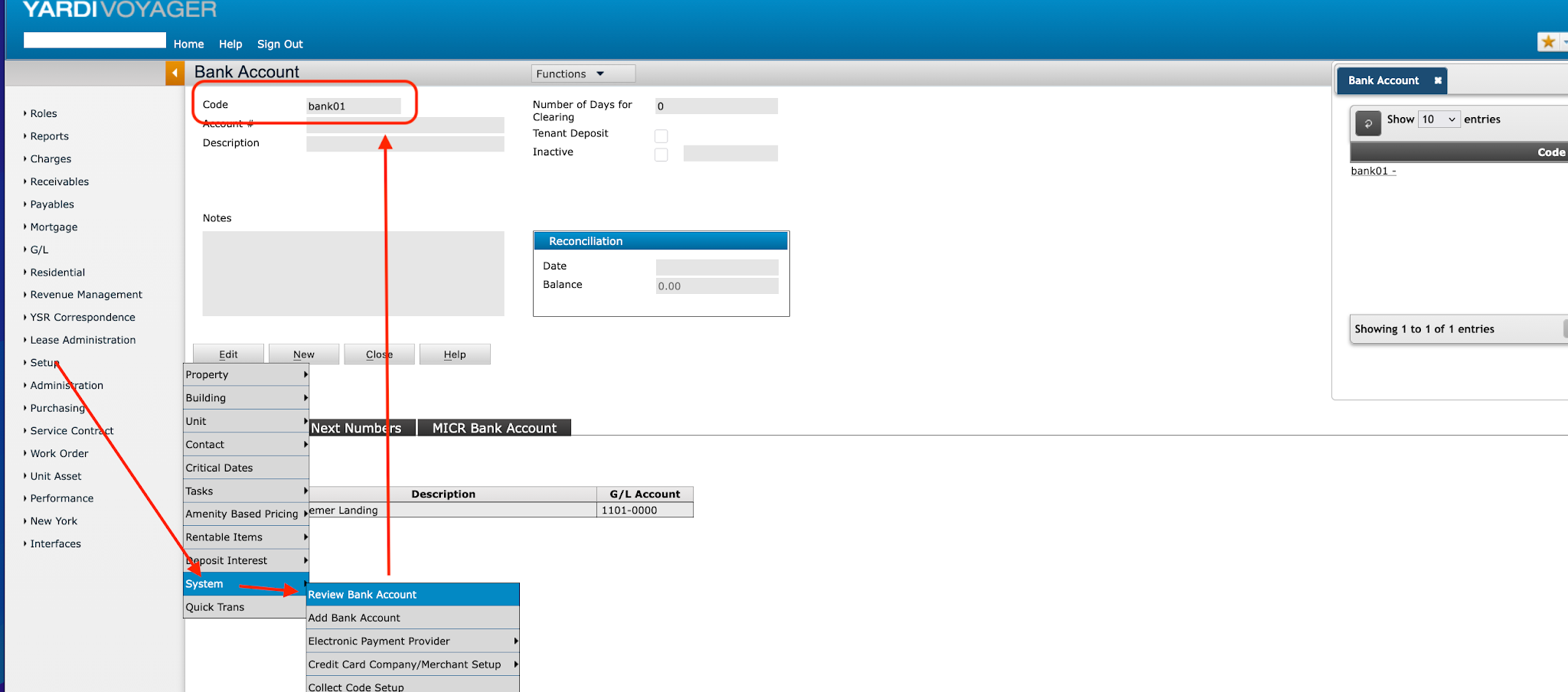
Bank Accounts can be found in Voyager via > Setup > System > Review Bank Account
If you don't have access to this view in the Voyager UI you'll want to reach out to Yardi support directly to find a valid Bank Account code for your Yardi Integration during testing.